What is the Hero MCP server?
The Hero MCP server connects your AI assistant — Claude, ChatGPT, or Gemini — directly to your Oracle environment. Once connected, you can run reports, ask questions about your ERP and HCM data, and, with the right Oracle permissions, create and update reports — all in plain English.
Hero connects using your existing Oracle login. It can only see and do what your Oracle account already has access to. No new Oracle users are created, and no data is stored by Dayos beyond what is needed to run the connection.
Tier 1
All Oracle users
- Run any existing BIP report
- Search the full report catalog
- Analyze report output in plain English
- Schedule recurring report runs
Tier 2
BIP Publisher admins
- Everything in Tier 1
- Create new reports from natural language
- Update existing reports via the AI agent
- Preview & approve every change before it applies
Not sure which tier you have? Hero detects your Oracle role automatically when you connect.
Before you begin
What you need
• Access to Hero — included with your Dayos plan
• An active Oracle Fusion Cloud environment
• Your Oracle login credentials
• Access to one of: Claude (Pro, Max, or Team / Enterprise),
Check your IP allowlist first
Some organizations restrict which external IP addresses can connect to Oracle. If your IT team uses IP allowlisting, you'll need to whitelist Dayos's IP ranges before proceeding. Contact support@dayos.com before starting.
Find your Oracle tenant details
Hero needs two pieces of information from your Oracle login URL. Open Oracle Fusion Cloud in a browser and look at the URL in the address bar.
# URL pattern
https://[your-code].login.[datacenter].oraclecloud.com
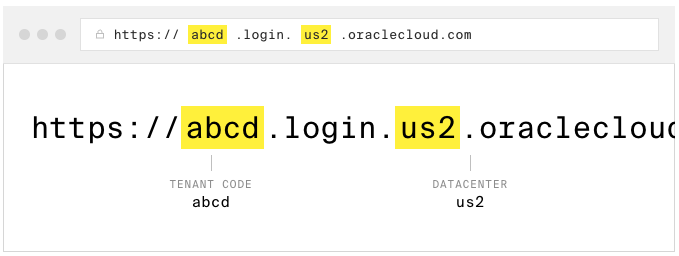
SS-01 Your Oracle sign-in URL, with the tenant code and datacenter highlighted.
Your tenant code
The 4 characters immediately before .login. in your URL. In the example above: abcd.
Your datacenter
The region code immediately after login. — above, us2. Most customers are on us1–us6; EU and APAC differ.
Environment | URL pattern | Tenant code | Datacenter |
|---|---|---|---|
Production | abcd.login.us2.oraclecloud.com | abcd | us2 |
Test | abcd-test.login.us2.oraclecloud.com | abcd | us2 |
Dev | abcd-dev1.login.us2.oraclecloud.com | abcd | us2 |
The tenant code and datacenter are identical across all your environments. Only the environment suffix changes.
Sign in to Hero
Open the Hero dashboard and sign in with your work email. Hero access is included with your Dayos plan — once you're in, you're ready for Step 3.
Don't have access yet?
Check your inbox for a Dayos invite from your organization's admin. If you can't find one, ask in the Dayos community on Slack and we'll help you get connected.
Connect your Oracle environment
From the Hero dashboard, click Connections, then select Oracle Fusion Cloud. Enter your Oracle Cloud URL and sign in to connect your account.
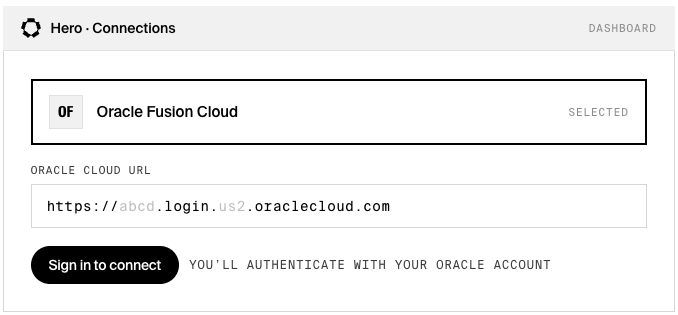
SS-02The Oracle connection screen in the Hero dashboard.
Your credentials, your access
Hero connects to Oracle using your own Oracle account. Dayos cannot access any data your Oracle account doesn't already have permission to see. You can disconnect Hero from Oracle at any time from the Connections screen.
Select your environment
Choose which Oracle environment to connect: Dev, Test, or Production. Most users start with Test.
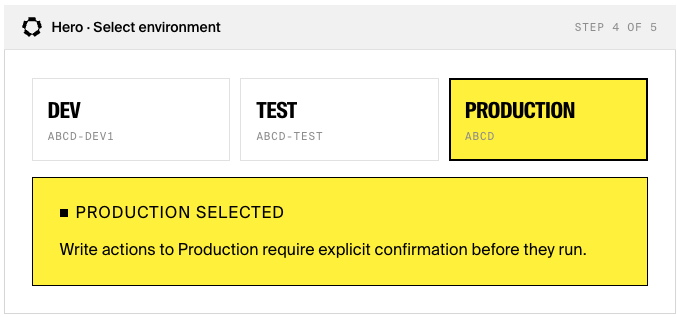
SS-03Environment selector with the Production warning state.
Working in Production
If you select Production, Hero displays a warning before every action that modifies Oracle data. Read-only actions — running and analyzing reports — have no effect on your data. Write actions — creating or updating reports — require your explicit confirmation before they execute.
Confirm your access tier
After connecting, Hero checks your Oracle role and shows your access tier automatically. No configuration needed.
If you see Tier 1, you can run any existing report you have access to and analyze the output in plain English. If you see Tier 2, you have BIP Publisher Administrator access and can also create and update reports.
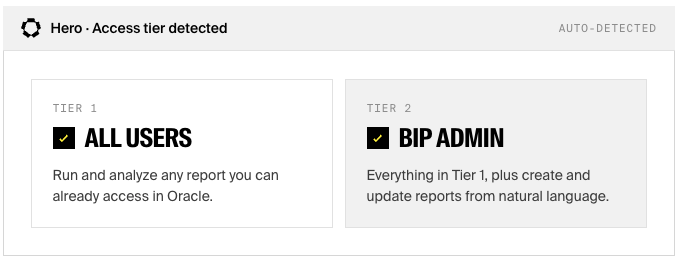
SS-04Tier confirmation — Tier 1 and Tier 2 states shown side by side.
If you hit a permission error
If you attempt a Tier 2 action but don't have the BIP Admin role, Hero shows a clear message and tells you which role to request from your Oracle administrator.
Enable Hero in your AI client
Hero works with your AI assistant through a custom connector. Setup differs by platform — follow the section for the client you use.
Claude
— For Claude Pro & Max
Open claude.ai and go to Settings → MCP (or Integrations).
Click Add custom connector.
In MCP server URL, enter:
https://ai-ms-dev.api.dayos.com/mcpClick Add, then Connect. Claude auto-discovers the OAuth endpoints — you do not need to enter a Client ID or Client Secret.
You’ll be redirected to the Dayos consent page. Enter your Oracle Fusion credentials (tenant code, datacenter, username, and password).
After validation, Claude receives a JWT and the connection completes. Hero appears in your connector list with a Connected status.
Activate Hero in a conversation
Click + at the bottom-left of the chat → Connectors → toggle Hero on.
— For Claude Team & Enterprise (Owner setup)
Go to Organization settings → Connectors.
Click Add, hover over Custom, and select Web.
Enter the MCP server URL:
https://ai-ms-dev.api.dayos.com/mcpClick Add. No OAuth credentials are required — Claude discovers them automatically.
Once an Owner configures the connector, members go to Customize → Connectors, find Hero (labelled Custom), click Connect, and complete the Dayos consent flow with their Oracle Fusion credentials.
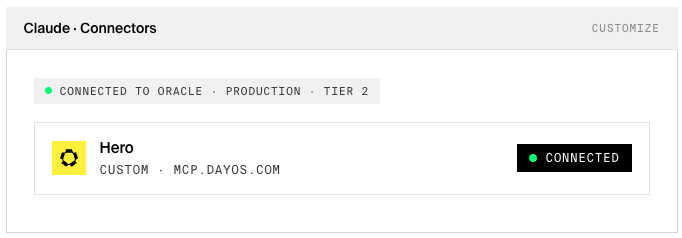
SS-06Hero shown as Connected in Claude, with the Oracle environment context header.
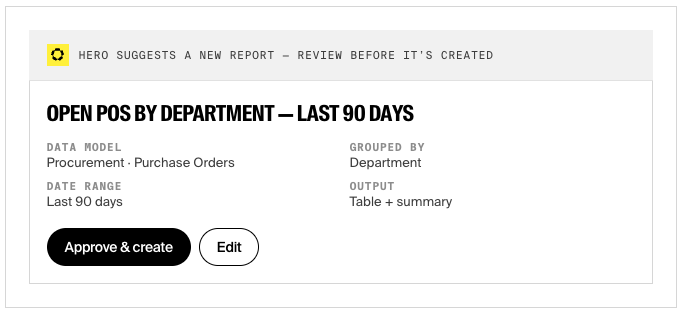
SS-07Report Preview Card (Mode A — AI suggestion) inside Claude.
Run your first report
Hero is now connected. Start with one of these in your AI client:
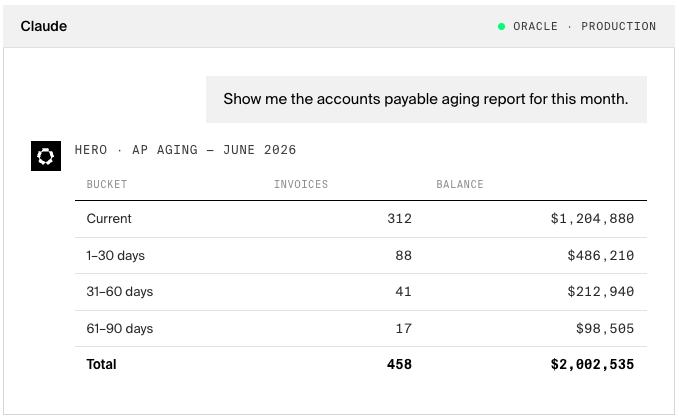
SS-10Oracle report output rendered inside Claude.
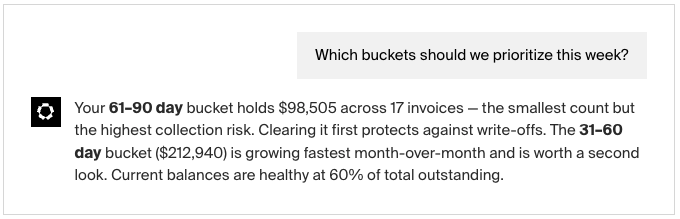
SS-11AI analysis — a plain-language summary of the report data.
Troubleshooting
• Check that your Oracle URL follows the format https://[code].login.[datacenter].oraclecloud.com. • Verify your Oracle username and password by logging into Oracle directly. • If your organization uses IP allowlisting, Dayos's IP ranges may not be approved — contact support@dayos.com before retrying. • For Test or Dev environments, confirm the correct suffix is in the URL (e.g. -test, -dev1).
• "BI Publisher Administrator privileges required" — this action needs Tier 2 access. Ask your Oracle administrator for the BIP Publisher Admin role, or use a Tier 1 action (running an existing report) instead. • "Report not found" — try different search terms, or ask Hero to show you the full report catalog for your folder.
• Make sure the connector is enabled for the current conversation: + → Connectors → toggle Hero on. • For Team / Enterprise Claude users, an Owner must configure the connector at the organization level first — check with your IT admin. • In the Hero dashboard, confirm your Oracle connection shows Connected. • Still stuck? Post your question in the Dayos community at dayos-community.slack.com — our team monitors it daily.